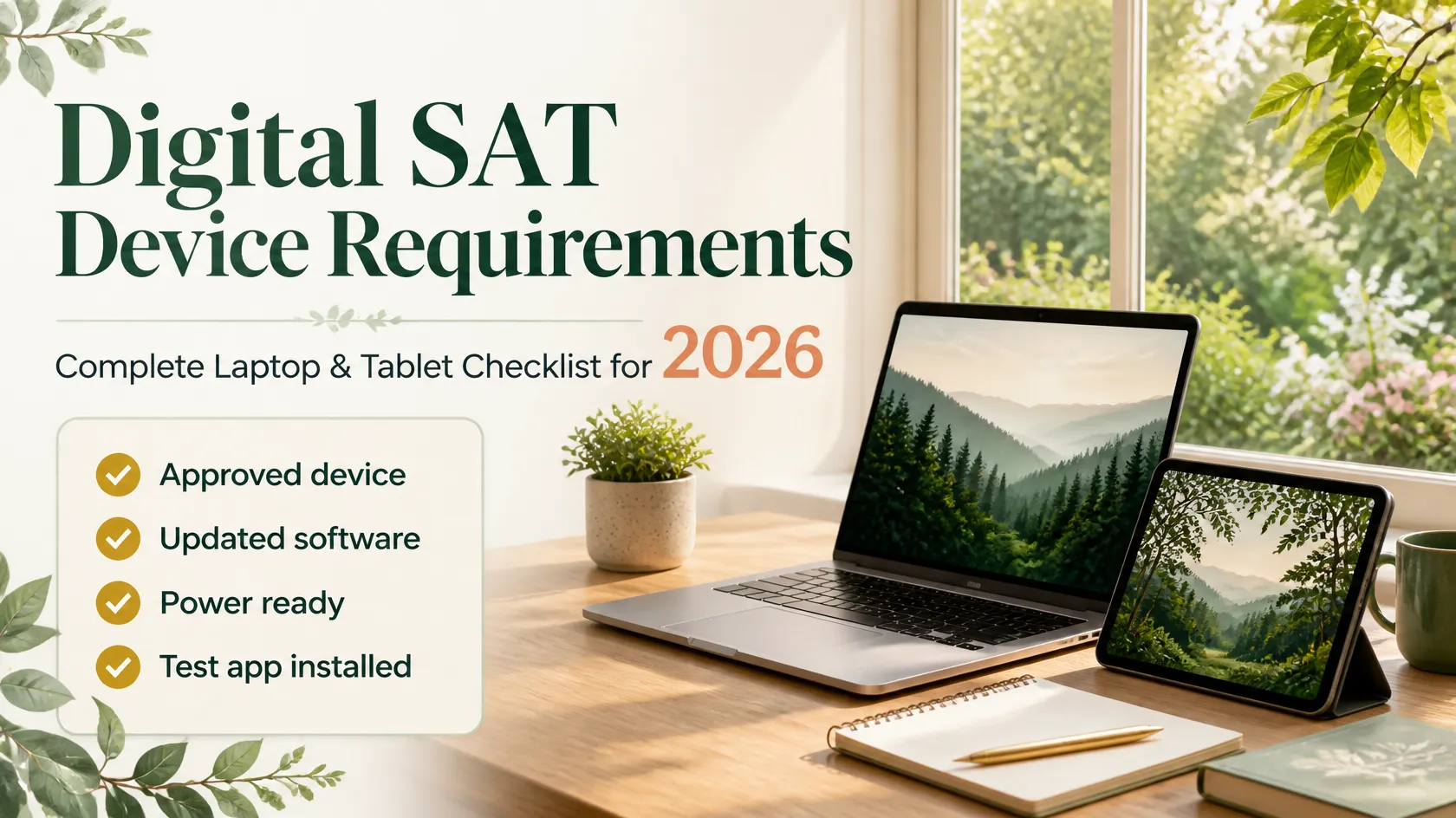
You spend months studying formulas and reading strategies, only for your laptop to die on you the day of the SAT test. It seems unfair, doesn’t it? Yet it happens to students every single year
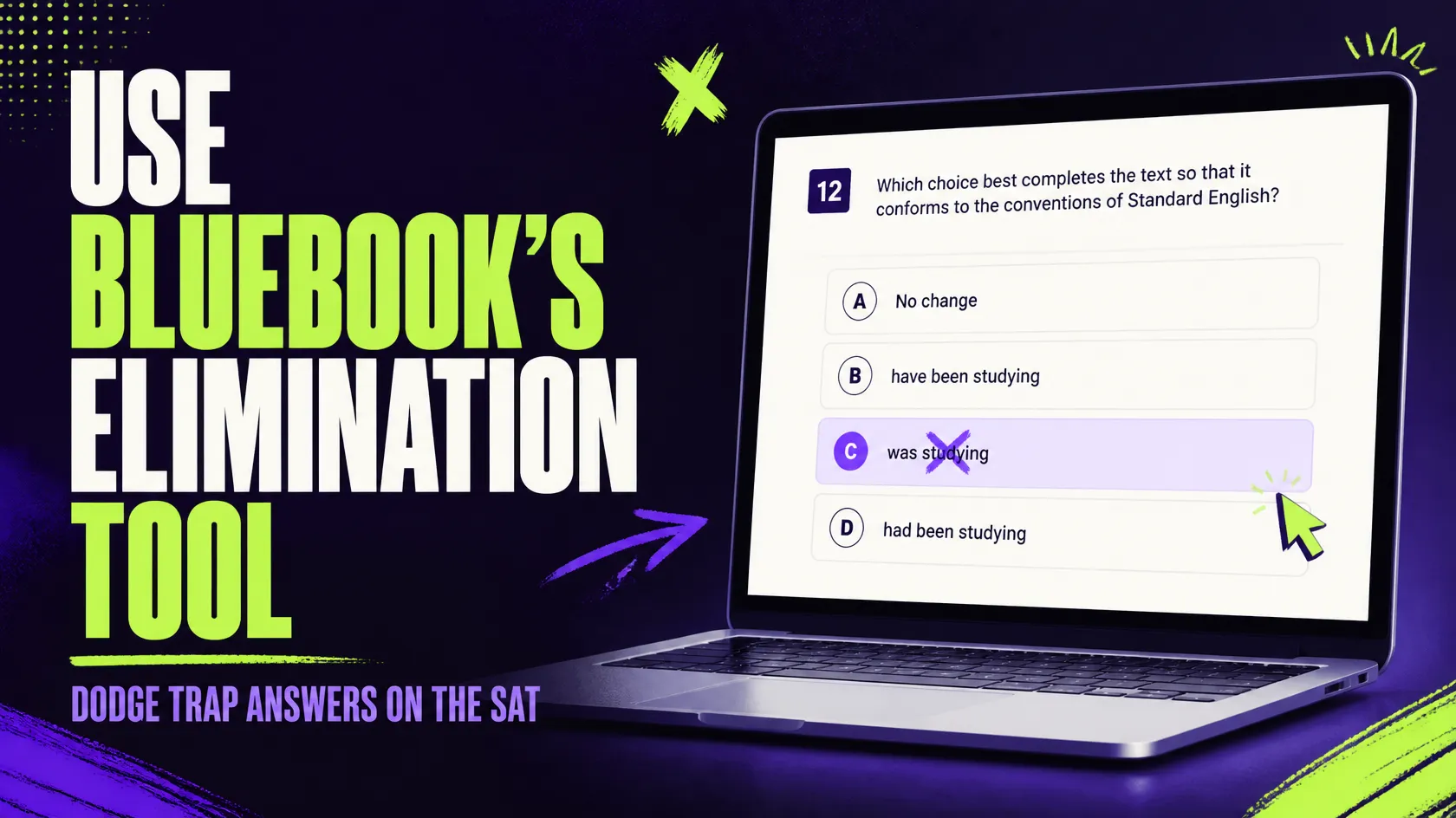
The digital SAT test is conducted using the Bluebook app. This means that your laptop or iPad is your answer sheet, your timekeeper, and your calculator. College Board also likes to update the list of approved devices frequently, which can mislead you if you rely too much on old blog posts.
Tech setup is only one part of a strong SAT result. If you also want structured help with strategy, practice and score improvement, good SAT Coaching in India can cover the content side while this checklist covers the device side.
However, there are a few simple precautions that will keep your device from ruining your SAT test day. In this article, you will learn what devices are allowed, what features may be disabled, and what other preparations will help you look forward to the test itself.
This article provides a complete guide to the Technical Requirements Checklist: How to Prepare Your Laptop or Tablet for SAT Test Day (2026 Guide).
Expert SAT Coaching in India
Learn with live classes, full-length mock tests and personal guidance from Ooshas Prep, and aim for your dream SAT score.
Why your laptop or iPad is as important as your revision schedule?
You have spent months learning algebra formulas, yet your test day is cancelled because your Android phone was not compatible with Bluebook. It is unfair, but it is also completely realistic. The digital SAT test is conducted using the Bluebook app. This means that your iPad, PC, or Chromebook is your answer sheet, your timekeeper, and your calculator. College Board also likes to update the list of approved devices every other year, which can mislead you if you rely too much on old blog posts.
However, there are a few simple precautions that will keep your device from ruining your SAT test day. In this article, you will learn what devices are allowed, what features may be disabled, and what other preparations will help you look forward to the test itself.
Which app is used to take the digital SAT?
Why do you need a specific device to take your SAT test?
Bluebook has an extensive list of approved devices. The app is available on Mac and PC, and iPad users can also take the SAT. However, Android phone users will not be able to take the test on their devices, as cellphones are not supported by the SAT testing program. Similarly, Chromebook users must install Bluebook on their laptops with school approval.
There is no universal agreement on what counts as a “school-managed” Chromebook, which is why contacting your educational institution is a must if you are considering this option. A few laptop models are completely excluded from SAT testing, including all Windows laptops in S mode or running Windows 11 SE. The S mode setting was recently popular among Windows users, but it will prevent Bluebook from launching on SAT test day.
What operating system do you need to run Bluebook?
The operating system (OS) requirements have changed significantly in 2026. For example, Windows 10 is no longer supported, which means that Bluebook will not work on Windows 10 laptops and tablets starting in fall 2026. Today is October 4, 2026, and Windows 10 users should consider upgrading their operating system to Windows 11.
The Bluebook website lists the following minimum and recommended OS versions for all approved devices in 2026:
- Device Minimum Recommended
- Windows laptop/tablet Windows 11 24H2 Windows 11 26H2
- Mac macOS 15 macOS 26.6.2
- iPad iPadOS 18 iPadOS 26.6.1
- School-managed Chromebook ChromeOS 144 Any stable version
These OS versions were taken from the official Bluebook device compatibility page. In 2026, Windows 11, iPadOS 18, and macOS 15 are the entry-level operating systems for SAT testing. Additionally, it is better not to update your OS beyond the recommended versions, as Bluebook may stop working.
Most students know that minimum system requirements are important, but they overlook the fact that the higher versions can also stop working. College Board recommends that you disable automatic OS updates so that your laptop or iPad does not update itself unexpectedly. This way, you can update your OS manually and test Bluebook before your SAT test day
Do keep in mind that you should update your operating system several weeks ahead of your test, not the night before.
What are the hardware requirements for the SAT test?
Laptop or tablet screens must also meet specific requirements. All laptop displays must be at least 10 inches, and all tablet screens must be at least 8 inches. Therefore, netbooks and other compact computers will not be allowed. According to the Bluebook website, laptops and tablets must also meet the following requirements:
- Device Processor RAM Storage
- Windows 1 GHz or faster processor 2 GB 1 GB
- Mac 1 GHz Intel or Apple processor 2 GB 1 GB
- iPad N/A 250 MB free space on 16 GB device
- Chromebook 1 GB 1 GB
The Bluebook app will automatically detect your RAM, operating system, and free storage space. You do not need to calculate these figures manually. Instead, you should click the “Test Your Device” button in Bluebook and make sure that no system requirements are failed. If Bluebook shows that your device is not ready, use the solutions listed below:
Free space: This is the most common reason why a student’s device is not ready for SAT testing. Your photos, videos, and other media take up space on your device’s storage drive, so delete unnecessary data to create at least 1 GB of free space.
How much battery power do I need for my SAT test?
Laptops and tablets must be able to sustain a three-hour charge. Here are a few recommendations:
- Charge your device the night before your SAT test.
- Charge your device again in the morning before your test.
- Bring your charging cable or a portable battery.
- Test your laptop/tablet and charging cable with another power supply.
College Board lists a charging cable or a portable battery as a “nice to have” item for SAT test takers. However, you should bring a power supply to your test center anyway, as there may not be enough charging stations for everyone. A portable battery is important for tablet users who cannot plug their device into a power supply.
What are the required device settings?
This is the single most important point on this page, as it can cause the most problems on your SAT test day You will need to update the following three settings in Bluebook:
- Enable automatic updates for the Bluebook app.
- Set your keyboard to English (US).
- Enable automatic date and time updates.
You will also need to disable the following features on your device:
- Parental controls (remove restrictions)
- Content filters (may interfere with Bluebook)
- Virtual Private Network (VPN)
- Startup applications (Grammarly, messenger apps, etc.)
- Guided access (iPad only)
Your device must not be running any software that restricts your online activity. Grammarly, Grammarly extensions, and other writing tools must also be turned off. Virtual machines and thin clients are prohibited on SAT test day. If you use them, College Board reserves the right to cancel your SAT scores. Bluebook must be the only application open on your device. Therefore, it is a good idea to close all other apps before launching Bluebook. Bluebook will notify you if any apps are running in the background. Although it may be tempting to use Facebook or WhatsApp while waiting for your test to load, any notification that appears on your device screen can be a reason for dismissal
What should you do to prepare your laptop/tablet for the SAT test?
Ooshas Prep has developed a comprehensive preparation plan for SAT test takers. It is crucial that you follow all of the following recommendations 30 days prior to your test. At least 30 days before your test
- Choose an approved device for SAT testing.
- Download Bluebook on your chosen device.
- Open Bluebook and click the “Test Your Device” button.
- Sign in to your College Board account.
- View your test details on your Bluebook homepage.
- Take a practice test on your device to make sure that everything works.
- Connect to Wi-Fi on a device that is not your home or school device.
- Apply all required settings to your device.
It is best to install Bluebook on your own device. This way, you are less likely to encounter technical difficulties on your SAT test day. However, your parents or school administration may install Bluebook for you, especially if you are using a school-managed device. In this case, make sure that your parents or school administrator follow College Board’s preparation guidelines.
Five days before your test
- Five days before your test, connect to Wi-Fi and open Bluebook again to update the app.
- Make sure that your personal information matches your identification document. Although Bluebook will usually recognize your identity, a mismatched name can delay you during check-in.
- If you are taking the SAT on a weekend, you will also need to complete the exam setup and generate your admission ticket. You should memorize your College Board login credentials, as Bluebook does not remember them for you.
Test day morning
- On the morning of your test, connect to Wi-Fi and restart Bluebook. Make sure to click the “Test Your Device” button again, sign in to your account, and view your test details. Disable any parental controls or content filters and ensure that all other settings are up to date.
How do you complete the exam setup and generate an admission ticket?
Many students confuse downloading Bluebook with generating an admission ticket. These are two separate tasks, and it is crucial that you understand the difference
You will need to complete the exam setup one to five days before your test. Once you finish all required steps, Bluebook will show you your admission ticket. This ticket serves as proof that you have completed all technical preparations for your SAT test.
It is better to print your admission ticket, as a screenshot of your ticket on a dead device will not be valid. If you are unable to generate an admission ticket, contact Ooshas Prep and ask for assistance. You will also need to double-check your Wi-Fi connection and settings before your test.
What is the safest way to carry your admission ticket?
What are the best practices for using Wi-Fi?
You will need a stable Wi-Fi connection at multiple points during your SAT test
- Connecting to Bluebook
- Updating Bluebook
- Completing the exam setup
Ooshas Prep recommends that you test your Wi-Fi connection at a location other than your home or school. A café or a friend’s house is a good option, as both provide stable and secure Wi-Fi. This way, you will know how Bluebook will behave under different network conditions. If your device is unable to connect to a new Wi-Fi network, you may have to update your device settings. It is a good idea to learn how to troubleshoot Wi-Fi connections ahead of time. You should also ask your parents or school administration for help if needed. If Bluebook refuses to open on your test day, check your parental controls and content filters. A virtual private network (VPN) can also prevent Bluebook from opening. These security settings must be turned off before your test day.
Know the SAT Before You Take It
Get the SAT exam details you need: format, sections, timing, and registration, all explained simply in one place.
What happens if you do not have an approved device?
If you do not have an approved device for SAT testing, you can ask Ooshas Prep for an approved device loan. However, you will need to apply at least 30 days before your test, as Ooshas Prep may need to send you a device.
What are the most common mistakes that students make?
Most technical problems are the result of a few common mistakes. Make sure that you do not make any of the following errors:
- Waiting until the end of the week to download Bluebook. Students often try to download the app two days before their test, but it is best to install Bluebook at least one month prior to the test.
- Using old information found on a blog. Bluebook’s system requirements are regularly updated, which means that some blog posts may provide inaccurate information. Always refer to the most recent official data when preparing for your SAT test.
- Skipping the step that involves checking the latest operating system versions. Windows 10 will no longer be supported in 2026, which means that your SAT test will be cancelled if you try to launch Bluebook on Windows 10.
- Leaving your virtual private network (VPN) on. Many students forget to turn off their VPN before the test. It is a good idea to disable your VPN at least one day before your test.
- Failing to take practice tests on their testing device. Bluebook provides students with a number of free official practice tests. Make sure to take at least one practice test on your testing device to find out how comfortable you are with the interface.
- Forgetting their College Board login credentials. Bluebook does not remember your login information, which is why it is important to write down your credentials or memorize them.
- Taking a screenshot of their ticket instead of printing it. Screenshots are not valid if your device fails on the day of the test. Always print your ticket to avoid last-minute issues.
- Arriving at the test center with a low battery. Charge your device the night before your test and charge it again in the morning.
How do you practice using Bluebook on your testing device?
Technical preparation involves more than installing Bluebook on your device. In fact, many students panic when they see the SAT test interface for the first time. This is why College Board encourages students to get comfortable with Bluebook ahead of time You should take at least one practice test on your testing device so that you know how the interface looks and feels. It is also important to familiarize yourself with all of the following features:
- The timer
- The question navigator
- The flagging system
- The answer eliminator
- The built-in calculator
You should also test how Bluebook looks on your device at the brightness level that you are most comfortable with. You can also experiment with font size and sitting position, as spending long hours in one position can lead to discomfort and poor concentration.
Once you finish a practice test on your own device, enter your result in an SAT Score Calculator to see where you stand. If you are still unsure about the format, timing or sections, read our SAT Exam Details guide before your next mock test.
Where Do You Stand on the SAT?
Use the Ooshas Prep SAT score calculator to track your progress and set a realistic target score.
Final checklist before your SAT test
Final checklist before your SAT test
Make sure that you use this final checklist as a reference several days before your test
One month before your test
- My device meets the operating system requirements listed above.
- My device has a 10-inch (or larger) laptop display or an 8-inch (or larger) tablet display.
- I have installed Bluebook on my own device.
- I have clicked the “Test Your Device” button and have resolved all issues.
- I have taken a practice test on my device.
- I have tested my Wi-Fi connection at a location other than my home or school.
Five days before your test
- I have reinstalled Bluebook on my device and updated the app.
- My name matches the name on my photo identification.
- I have completed the exam setup.
- I have printed my admission ticket.
- I have memorized my College Board login credentials.
Test day morning
- I have reinstalled Bluebook on my device and updated the app.
- I have turned off all parental controls, content filters, and virtual private networks (VPNs).
- I have turned off any apps that launch automatically when I open Bluebook.
- I have charged my device and brought a charging cable to the test center.
- I have brought my admission ticket, photo identification, and writing instruments to the test center.
Conclusion-
Getting your laptop or iPad ready for the SAT test is part of the SAT preparation process. Always remember to do these actions several weeks or months before the actual test, of course, not the week of the exam. Your device should satisfy all of Bluebook's demands and be able to run the application. Don't also forget to do a practice test on your testing computer so that you are completely comfortable with the process, including the timer, question navigator, flagging tool, and calculator that is built-in. Know how to check your Wi-Fi and required settings, your battery life, and your login before taking the actual exam. Do your final setup about five days before the SAT, and then verify that everything is correctly set up again on the testing day. Don't leave this simple task for the last minute; you may be rushed when taking the exam!
Frequently Asked Questions
No, you cannot. The Bluebook app is not compatible with cellular devices. You will need to use an approved laptop or tablet to take the digital SAT test
No, you are not using your personal Chromebook. It is allowed only for the school's administrative managed devices.
No, it does not. Bluebook will no longer support Windows 10 in 2026. You will need to use a supported version of Windows 11 or newer.
You should download Bluebook at least one month before your SAT test. This will give you enough time to complete all of the necessary preparations.
If your device is not working during the test, you can raise your hand and request for help from the test administrator. You can also carry a spare device to the test center so that you can keep taking the test.
Yes, you do. College Board recommends that you print your admission ticket, as a screenshot of the ticket on a failed device will not be valid.
Yes, you can. In fact, you can use any device that meets Bluebook system requirements, including Windows tablets. But I recommend that you should attach an external keyboard while taking a tablet in the SAT.
Yes, you should. This will help you get used to Bluebook ahead of time and resolve any potential issues before the test.